1. Export a TXT marker file from Adobe Prelude Live Logger
In the Adobe Prelude Live Logger app go to export and save the TXT file.
2. Use the "Prevodník značiek" to convert the TXT marker file into a CSV file
Open the free Prevodník značiek, select "Adobe Prelude Live Logger > Marker (.txt)" and set "convert" to "CSV for Google Sheets". Generate and download the file. Ak máte problémy s prevodom súboru, môžete kontaktovať bezplatnú podporu.
3. Import the CSV file into Google Sheets
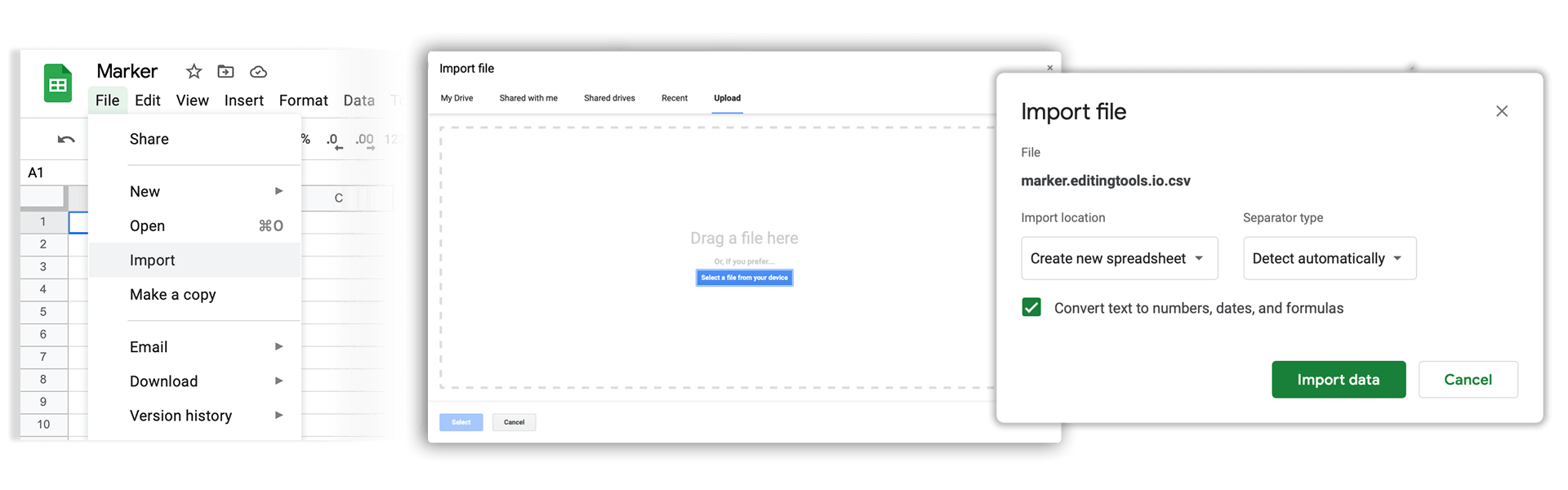
Open Google Sheets and go to "File -> Import". Upload the generated CSV file and press "Import Data" to generate the Sheet with all markers.
🚀 Hotovo
To je zatiaľ všetko! Ak vám bol tento návod užitočný, zdieľajte ho, prosím, a podporte nás tým. Ak máte návrhy, ako by sme mohli workflow vylepšiť, dajte nám vedieť!