1. Export an Audition marker file from Notetracks Pro
To export markers and comments from Notetracks Pro, click the Download button in your active session and select "NoteTracks.com > Audition Markers (.csv)".
2. Use the "Prevodník značiek" to convert the Audition marker file into a CSV file
Open the free Prevodník značiek, select "Audition" and set "convert" to "CSV for Google Sheets". Generate and download the file. Ak máte problémy s prevodom súboru, môžete kontaktovať bezplatnú podporu.
3. Import the CSV file into Google Sheets
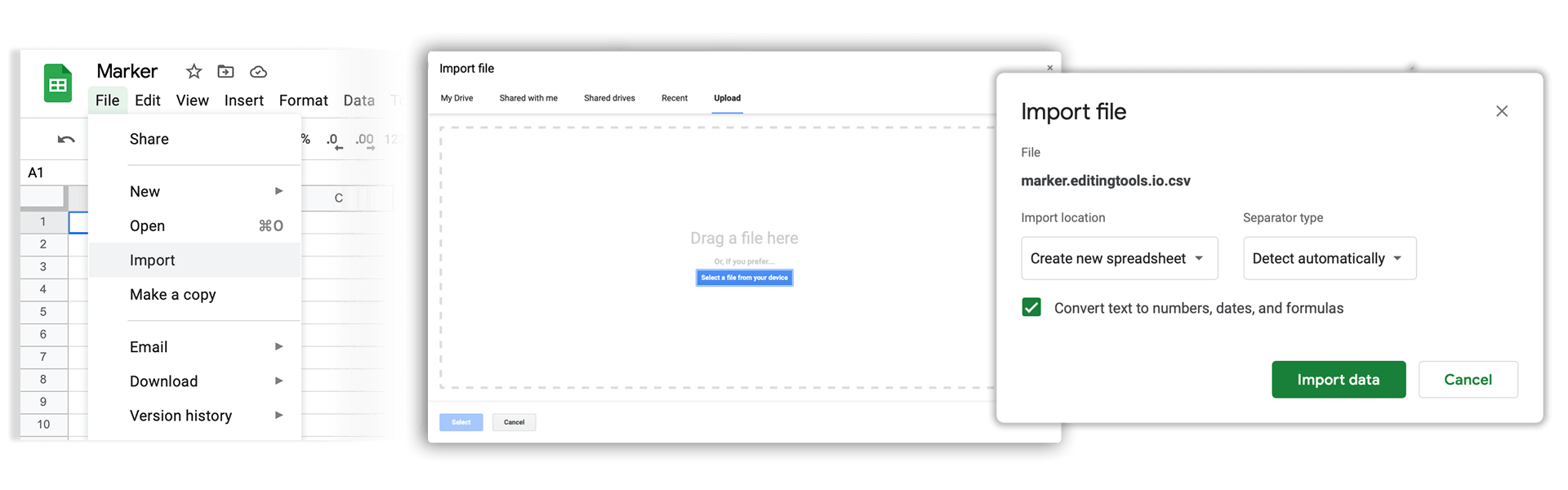
Open Google Sheets and go to "File -> Import". Upload the generated CSV file and press "Import Data" to generate the Sheet with all markers.
🚀 Hotovo
To je zatiaľ všetko! Ak vám bol tento návod užitočný, zdieľajte ho, prosím, a podporte nás tým. Ak máte návrhy, ako by sme mohli workflow vylepšiť, dajte nám vedieť!